
OscarWatch FT4
OscarWatch FT4 is a modem for short digital contacts through a linear satellite such as RS-44. It listens, sends the messages, switches the radio to transmit, keeps you on frequency, and saves a finished contact to the logbook. You can have a go without running WSJT-X, and without already knowing the FT4 abbreviations. They are explained as you go, and again in Words you will see.
On this page
- Watch
- What FT4 is
- Before a pass
- A contact
- Reading a message
- Callsigns in angle brackets
- Logging
- Power and good practice
- The window
- Staying on frequency
- Settings
- If something is wrong
- Words you will see
- More detail
Finding your transmit signal
This short video shows how to find your own FT4 signal on the waterfall and complete a contact. Click the picture to watch it on YouTube. You need an internet connection.
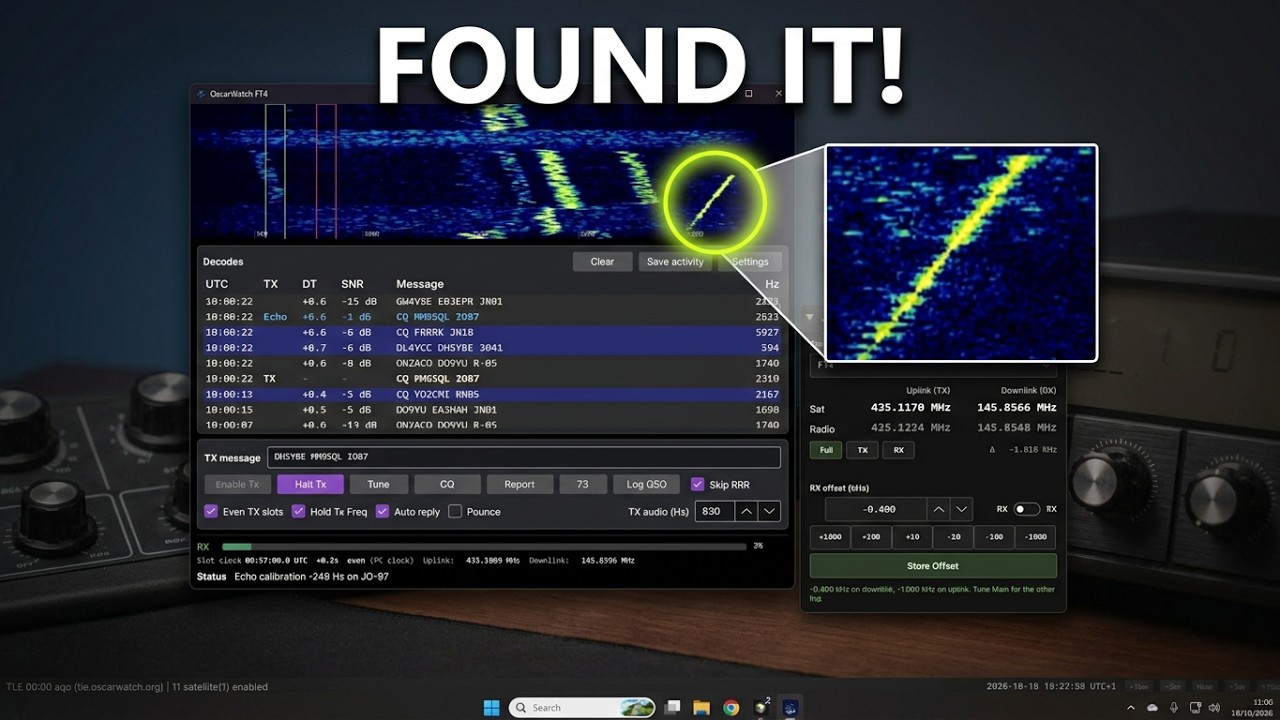
OscarWatch FT4: finding your transmit signal (Peter MM9SQL).
What FT4 is
FT4 is a short contact made from a handful of fixed messages. The computer turns each message into a tone. Time is split into slots of 7.5 seconds. You send in one slot and listen in the next, so one exchange takes 15 seconds. From the first call to the goodbye is usually about a minute.
You and the other station take opposite slots, so you are never transmitting at the same time. Those two turns are called even and odd. When you answer someone, OscarWatch picks the turn they are not using.
A linear satellite repeats a whole slice of frequencies, a bit like an SSB section of a band in the sky. Many stations can be on at once, and you can listen while you transmit, so you hear your own signal come back. OscarWatch shows that copy as Echo. An echo means the satellite heard you, and OscarWatch uses it to nudge your transmit frequency until that echo sits in the right place.
Every slot starts on an exact second, so the PC clock needs to be right to about half a second. Turn on Windows time synchronisation, or use a tool such as Meinberg NTP, before a pass.
No internet in the field? If a GPS is set up in Settings → Integrations → GPS, OscarWatch can time the slots from the GPS instead. About ten seconds after a fix, it compares GPS time with the PC clock. If the PC is more than a quarter of a second out, FT4 uses GPS time for slots, transmit timing, and the time stored in the log. The Windows clock itself is left alone. See Clock source.
Before a pass
- Who you are: set your callsign and locator (grid square) under Settings → Station. A locator is a short code for where you are, such as IO87. Four or six characters are enough. FT4 will not open the receiver or transmit without a callsign and a locator of at least four characters. Until both are set, the waterfall shows a notice naming what is missing, and receiver audio stays closed. A portable or mobile callsign such as
MM9SQL/PorMM9SQL/Mis fine. Some of these are sent a little differently: see A prefix or suffix on your own callsign. - Radio control: connect the radio so OscarWatch can follow Doppler, the way the frequency slides as the satellite moves. See Radio & rotator.
- Audio: the radio's receiver has to reach the PC, and the PC's transmit audio has to reach the radio. That is usually the radio's USB soundcard, or a separate interface.
- Satellite and mode: select the satellite on the main window and choose FT4 as the mode.
Transmit stays off, and the status line says why, when:
- the selected mode is FM. FT4 needs a linear satellite, where you can hear yourself. An FM repeater satellite does not work that way;
- FO-29 is selected. Its licence does not allow this mode;
- AO-7 is selected. AMSAT has asked that FT4 is not used there;
- the radio reports more than 30 W. See Power and good practice.
A contact
The video above shows these steps on the waterfall.
- Open Tools → OscarWatch FT4. Only one window can be open. Choosing the menu again brings that window forward. The waterfall starts, and the status says Listening.
- Press Settings. On Soundcards, pick the input (audio from the radio) and the output (audio to the radio). On PTT, pick how the radio is switched to transmit. CAT is the usual choice when the radio has a USB control lead.
- Press Tune. A steady tone goes out. Set TX level so the radio's ALC meter barely moves. ALC is the radio's own overload meter: if it swings, the sound from the PC is too loud and the tone will distort. Keep the power at 30 W or less (see Power and good practice). Press Tune again to stop. Tune does not change the saved uplink trim.
- Watch the list. A station calling anyone looks like
CQ EA1ABC IN63: CQ, their callsign, then their grid. - Click their line to answer, or press CQ to call yourself. OscarWatch fills in the TX message, chooses the right slot, and turns transmit on.
- Leave it to run. Your sends are marked TX. Your signal back from the satellite is marked Echo. The other station's lines have a blank TX column. A line marked AP is a weak reply with the callsigns filled in. Struck through means it was not used. See Reading a message.
- When both signal reports have been exchanged and both stations have sent 73, the contact is saved to the logbook. RR73 counts as that station's 73.
Press Halt Tx at any time to stop at once. Closing the window while it is transmitting asks you to confirm, and then stops the transmission.
If nobody answers, transmit stops after the watchdog time (3 minutes unless you change it under Settings → Modem). Other stations on the waterfall, and your own echo, do not count as an answer. Set the watchdog to 0 if you want transmit to stay on. Stay at the radio while you are transmitting.
Reading a message
You do not type these. CQ, clicking a line, Report, and 73 fill the box. Read each line from the left:
- the first callsign is who the message is for;
- the second callsign is who sent it;
- the last part is a grid, a signal report, or goodbye.
A callsign in angle brackets, such as <PA/DL1ABC>, was sent as a short code rather than in full. See Callsigns in angle brackets.
A signal report is a number in dB. Higher is stronger. A minus number means the signal is below the noise, which is still a normal copy on FT4. You will work stations you cannot hear by ear. An R in front of the number means "I copied your report".
This is a normal contact when Skip RRR is ticked, which it is by default. In the example, you are MM9SQL.
| You see | What it is |
|---|---|
CQ MM9SQL IO87 |
You are calling CQ, with your grid. |
MM9SQL G4ABC IO91 |
G4ABC answered you, and sent their grid. |
G4ABC MM9SQL +05 |
Your signal report to them: 5 dB above the noise. |
MM9SQL G4ABC R+02 |
They copied your report. Their report to you is +02. |
G4ABC MM9SQL RR73 |
You copied them, and you are saying goodbye in the same message. |
MM9SQL G4ABC 73 |
They signed off. Once you have sent 73 as well, the contact can be logged. |
If you answer someone else's CQ, the first message OscarWatch sends is your grid. The reports start after they reply.
The contact is complete when both stations have sent 73. RR73 counts as that station's 73. OscarWatch keeps sending 73 or RR73 until the other station has sent theirs. If they miss your RR73 and send their report again, RR73 goes out once more. Afterwards the TX message goes back to your CQ and transmit stays off. Press CQ when you want to call again. OscarWatch will not answer the station you have just worked.
Skip RRR folds "all received" into the goodbye, so the contact is one message shorter. Leave it ticked on a satellite: a pass is not long. Untick it if you prefer a separate RRR, then 73.
A very weak reply can be filled in once both callsigns are known. That line is marked AP. OscarWatch uses it when the rest of the message checks out. A struck-through AP did not check out: it stays on the list and does not change the TX message. 73 and RR73 are not tried until a signal report has been exchanged, so a noisy hint cannot end the contact early. Turn this off under Settings → Modem if you only want messages that were read directly. The limits are under Decoding.
Callsigns in angle brackets
An FT4 message has room for a standard callsign: up to six characters, such as G4ABC or MM9SQL, with an optional /P or /R on the end. Anything else is a compound callsign:
- a prefix, such as
PA/DL1ABC; - a suffix other than /P or /R, such as
G4ABC/M; - a callsign too long for the standard pattern, such as
3DA0ABCD.
A message with a grid or a signal report has no room left for a compound callsign, so it is sent as a short code (a hash) instead. The other messages carry it in full: a CQ, a reply to a CQ with no grid, and RRR, RR73 or 73. The two exact forms are shown under A prefix or suffix on your own callsign.
A short code can only be turned back into a callsign once that callsign has been heard in full. When it has, the line shows it in angle brackets, such as MM9SQL <PA/DL1ABC> -05. When it has not, you see <...> instead, such as MM9SQL <...> -05. WSJT-X behaves the same way.
Clicking a <...> line cannot answer it, because the callsign is not known yet. The status line says so. Keep listening: once that station sends its full callsign, later lines name it and clicking them works as normal.
To name these stations sooner, OscarWatch loads compound callsigns like this when FT4 starts:
- up to 50 you have worked, from your logbook;
- ones heard on air in earlier sessions. Up to 150 are kept in
ft4-learned-callsigns.txtin the OscarWatch settings folder. You can delete the file to start again.
Working a station with a compound callsign
Nothing changes for you. Click their line as usual. Your messages to them show their callsign in angle brackets, for example <PA/DL1ABC> MM9SQL IO87. That is expected: their callsign goes as a short code, and their own station always recognises it. The logbook records their full callsign.
A prefix or suffix on your own callsign
If your own callsign is compound, such as MM9SQL/M, OscarWatch makes sure the other station receives it in full. It uses the same messages as WSJT-X, so any WSJT-X station can work you. In this example you are MM9SQL/M, calling CQ:
| You see | What it is |
|---|---|
CQ MM9SQL/M |
Your CQ. There is no grid, because your full callsign takes that room. |
<MM9SQL/M> G4ABC |
G4ABC answered, with their full callsign and no grid. |
G4ABC <MM9SQL/M> -05 |
Your report to them. Your callsign goes as a short code, because the report needs the room. |
<MM9SQL/M> G4ABC R-08 |
Their report to you. |
G4ABC MM9SQL/M RR73 |
Your goodbye, with your full callsign again. |
MM9SQL/M <G4ABC> 73 |
Their 73. The contact is logged. |
When you answer someone else's CQ, your first message is G4ABC MM9SQL/M, again with no grid. Because your grid is never sent, it may be missing from the other station's log. Your own log is written as normal. /P and /R on a standard callsign are not compound, so MM9SQL/P sends its grid like any other callsign.
If you type a message yourself, a callsign in angle brackets is sent as the short code, and a compound callsign without them is sent in full where the message has room.
Logging
A finished contact is written to the OscarWatch Logbook on its own. That means both signal reports have been exchanged, and both stations have sent 73 (RR73 counts). If you have no logbook yet, OscarWatch creates Main logbook and uses the grid from Settings → Station. Set your callsign afterwards with Logbook → Edit logbook.
The logged grid is the one that station sent. If you start calling one station and then work another, the first station's grid is not carried over. When a contact finishes without a grid, for example because they answered with a report straight away, or they have a compound callsign and so never sent one, OscarWatch uses the most recent grid already in that logbook for the same callsign. If there is none, the grid is left blank and you can add it later.
Log QSO saves a contact that did not finish. If the Logbook window is open, the new line shows at once. If that logbook uploads to Cloudlog, the contact is queued as well. You can also add or edit contacts from Tools → OscarWatch Logbook.
Power and good practice
Keep the radio at 30 W or less. Everyone on a linear satellite shares one slice of the passband, and one strong signal turns the satellite down for the rest. FT4 still copies a station that is weaker than the noise, so extra watts rarely help you and usually spoil the pass for other people.
OscarWatch reads the power setting on ICOM radios that report it over CI-V (for example the IC-9700), on the Yaesu FT-991 and FT-991A, and on the Kenwood TS-2000. On an IC-910, choose IC-910H, IC-910D, or the 20 W IC-910 under Settings, Radio. On an IC-9700, choose IC-9700, Japan IC-9700, or Japan IC-9700S. CI-V power is a fraction of that model's full output, so the wrong choice makes 30 W land too low. A saved IC-910 stays on the H ratings, and a saved IC-9700 stays on 100 W / 75 W. OscarWatch checks the power when you press Enable Tx or Tune. Tune waits for that reading before it keys. Turning the power up after that is not seen until you press one of those again. Radios that cannot report their power are not checked, and OscarWatch cannot see an amplifier after the radio. Please keep to the limit anyway.
If the power is too high, the status line says so and transmit stops. Turn the power down and press Enable Tx or Tune again. Or tick Lower RF power to 30 W under Settings → Modem: OscarWatch then sets the radio to 30 W when you press either of those, and leaves it at that setting. If the radio will not change, transmit stays blocked.
A few habits make a pass better for everyone:
- Watch your echo. If it comes back strong, you are already loud enough. Turn the power down until the echo is still decoded but not one of the strongest signals on the waterfall.
- Listen first. Answering a CQ you can see is quicker than calling CQ over the top of others.
- Keep contacts short. Leave Skip RRR ticked, and stop once you have both sent 73.
- Do not leave CQ running unattended. The watchdog stops transmit when nobody answers, but you should be at the radio while you transmit.
The window
From top to bottom: the waterfall, the list of messages, the box you send from, and the status line.
Waterfall
The waterfall is the receive audio, from about 200 Hz to 3000 Hz, with newer signals at the top. An FT4 signal is a short bright stripe. The numbers along the bottom are the audio frequency in Hz: where that stripe sits in the radio's audio.
OscarWatch follows the noise floor by itself. Waterfall range under Settings → Appearance is how many decibels above that floor are drawn. A smaller number makes the traces stand out more. The usual setting is 40 dB.
- Green bracket: where you are listening (RX). During a contact it sits on the other station.
- Red bracket: where you transmit (TX). Your echo should come back inside it.
- Left-click moves the green bracket onto a signal. The red bracket moves with it, unless Hold Tx Freq is ticked. With that ticked, left-click moves receive and right-click moves transmit.
Decoding covers the whole waterfall, from 200 Hz to 3000 Hz. The brackets choose where you transmit and which station the receiver follows. They do not limit what is decoded. You do not have to park the green bracket on a trace to read it.
The list
| Column | Meaning |
|---|---|
| UTC | When that slot started, in UTC. |
| TX | Blank when you heard someone else. TX is a message you sent. Echo is your own message back from the satellite. AP is a weak reply with the callsigns filled in. Struck through means it was not used. |
| DT | How late the signal was, in seconds. By default this follows WSJT-X, so about 0 is on time and your echo is often a little later. You can switch this in FT4 settings; with the WSJT-X convention off, DT is measured from the start of the slot and on time reads about +0.5. |
| SNR | How strong the signal is compared with the noise, in dB. Higher is stronger. Below zero is normal. This is the same scale WSJT-X uses. |
| Message | The text that was decoded. |
| Hz | Where the signal sits on the waterfall. |
If one station's DT is a long way from the others, that station's clock is off. If every station is a long way off, set your PC clock, or use a GPS. See Clock source.
Some received lines are shaded so a useful one stands out. The words in the message still tell you what it is. The shade is only a hint:
- someone calling you, who is not the station in the contact;
- the station you are working, including after that contact has finished;
- a CQ from a station you have already logged;
- a callsign you have not logged, including when they are calling CQ;
- a 4-character grid you have not logged;
- the station you are waiting for with Pounce, marked Target.
Change the background and the text colour under Settings → Appearance. Until you pick a text colour, it follows the light or dark theme. The TX row sets the colour of messages you send. Echo lines keep their own colour. Decode list font size on the same page runs from 10 to 28 if you want larger text.
A stripe on the waterfall becomes an Echo line only after the message decodes. Echoes are often a little late because of the trip to the satellite and back. OscarWatch looks for them in your transmit slots as well as your receive slots.
Clear empties the list. Save activity writes it to a text file.
Sending
- TX message: the text that will be sent next. The buttons fill it in. You can type over it if you need to.
- Enable Tx: send that text in your next transmit slot.
- Halt Tx: stop at once. This also stops Tune.
- Tune: a steady tone on your transmit frequency, for setting the level and finding your echo. Press again, or Halt Tx, to stop.
- CQ: call CQ with your callsign and grid (no grid with a compound callsign). With Auto reply ticked, the first station that calls you is answered.
- Report and 73: send that message again to the station you are working, if they missed it. Both need a contact in progress.
- Log QSO: save the contact now, even if it has not finished. Finished contacts are saved for you.
- Skip RRR: ticked by default. The contact ends with RR73 instead of a separate RRR and then 73.
- Even TX slots: take the even turn instead of the odd one. When you answer someone, OscarWatch already picks the turn they are not using, so you rarely need this.
- Hold Tx Freq: ticked by default. Clicking a station does not move where you transmit, which keeps you from landing on top of them. Untick it to transmit on the same audio frequency as the station you answer. While it is ticked, left-click the waterfall for receive and right-click for transmit.
- Auto reply: ticked by default. While you are calling CQ, the first station that calls you is answered. Untick it to keep calling until you click the station you want. Tick it again and the next caller is answered, including someone who called in the last few seconds. A contact you have already started still runs through to the report and the goodbye on its own.
- Pounce: tick to wait for one station and call them automatically. See Wait and pounce.
- TX audio (Hz): your transmit position on the waterfall (the red bracket).
Wait and pounce
Use this for a sked, or for a station you need that only shows up for a moment. Tick Pounce, type a callsign or a grid, and click Arm. Cancel leaves it unticked. The station does not have to be in the list yet. You can also right-click a line and choose Pounce on this station.
- OscarWatch answers the first time that station calls CQ or calls you, exactly as if you had clicked the line. Then it stops waiting, so it never calls them twice.
- While they are working someone else, it keeps waiting. It does not call over another contact.
- A callsign matches with or without a portable part, so
MM0ABCalso matchesMM0ABC/P. - A grid such as
IO85matches any station sending that 4-character grid. FT4 only sends 4 characters, so a 6-character grid is matched on its first 4. - It does not fire while you are already in a contact. It waits until that contact has finished.
- Lines from the station you are waiting for are shaded and marked Target.
- While armed, the box stays ticked and reads Pouncing: and the target. Untick it to stop waiting. Halt Tx also stops it and unticks the box, and so does the pounce firing. To change the target, untick and tick again.
- The target is not saved. It is cleared when you close OscarWatch.
Status line
-
RX / TX and the bar: TX while this 7.5 second period is being sent, or can still be sent (the first half-second). A late click stays on RX until the next transmit period. The bar shows how far through the period you are.
-
Slot clock: UTC now, how far into the slot, and whether the slot is even or odd.
-
Clock source, in brackets after the slot clock:
- PC clock: FT4 is using Windows time. There is no GPS, or it has no fix yet.
- PC clock, GPS agrees: the GPS says the PC is within a quarter of a second, so nothing is being corrected.
- GPS time, PC clock +1.20 s out: the PC clock is wrong by the amount shown, so the slots follow the GPS. A plus means the PC is ahead. A minus means it is behind.
GPS time is often about a tenth of a second behind true UTC, because each report arrives slightly after the second it describes. FT4 is fine with that. Turn it off with Use GPS time for FT4 slot timing in Settings → Integrations → GPS.
-
Uplink / Downlink: the frequencies OscarWatch is setting for this satellite.
-
Status: what is happening now, for example Listening, Calling CQ, Answering, or Echo calibration.
Staying on frequency
A satellite's frequency moves as it travels. That movement is Doppler shift. OscarWatch deals with it for you.
During each slot
The radio's frequency is updated once for each 7.5 second slot, then held still, so it is not being tuned while a message is going out. Before a transmit slot that update is sent early, so keying the radio (CAT PTT, for example on the IC-9700) is not held up behind it. The small drift inside the slot is taken out in the audio. You can turn that audio correction off for transmit or receive under Settings → Modem. Leave it on.
When the hold applies, and going back to SSB
Holding the radio still for each slot only suits FT4. It applies while the FT4 window is open and FT4 is running, whichever transponder is selected.
Closing the FT4 window stops listening and transmitting, and releases the separate PTT port. The hold is released straight away. The radio then follows Doppler continuously as normal, and the audio correction above is switched off too. Open the FT4 window again and the hold comes back while that window is open.
Your echo
Doppler correction is not always exact. The satellite's own frequency can be a little off, so your echo may not land in the red bracket. When OscarWatch decodes your own echo (CQ, reply, report or 73), it measures the difference and shifts the uplink so the next transmission comes back on the bracket. This keeps tracking drift during a contact, not only when you call CQ. The shift is remembered for that satellite and used again next time.
- It corrects at most once per slot, so it does not chase itself.
- A stripe on the waterfall that has not decoded is never used. It could be another station near the bracket.
- To see or change the saved shift, open Settings → Echo calibration. Clear is this satellite. Clear all is every satellite.
Leave TX offset in the satellite panel at zero while you use FT4. Echo calibration already moves the uplink. Two corrections at once make it harder to settle.
Moving to another frequency
Turning the radio's tuning knob will not hold. At the start of every slot OscarWatch puts the radio back on the frequency it has worked out. Move from OscarWatch instead. These controls are on the FT4 window and the main frequency panel. They are not in the FT4 Settings window.
A short move, inside the audio you can already hear. Click the waterfall, or type a new TX audio (Hz). That slides the red bracket along the waterfall. Most FT4 activity is reached this way, without touching the radio's dial.
A longer move, when the station is outside that audio. On the main window, in the frequency panel next to the uplink and downlink, set the RX/TX switch to RX. Then use +10, +100, and +1000, or the matching minus buttons, to slide the whole downlink. The radio follows at the next slot, within 7.5 seconds. Store Offset keeps that shift for this satellite while you are on FT4, and leaves your SSB offsets as they were.
Settings
Press Settings in the FT4 window. The pages are in the order you need them: sound, how the radio is switched to transmit, how a contact runs, where decodes are reported, how the window looks, then the saved echo trim.
Soundcards
- Input: audio from the receiver.
- Output: audio to the transmitter.
- TX level: how loud that audio is. Set it with Tune so ALC barely moves.
- TX level meter: how hard the output is being driven while you transmit or tune.
These are not the soundcard used for pass recording. While FT4 is open, pass recording pauses so FT4 can use the receive soundcard. Recording can start again after you close FT4.
If you use a Virtual Audio Cable to share audio with another application, send FT4 transmit audio to CABLE Input and have the other application listen on CABLE Output. After you change devices in Windows, press Refresh and choose them again.
PTT
PTT is how the radio is switched to transmit.
- VOX / audio: OscarWatch only plays the sound. The radio or interface switches to transmit when it hears it.
- CAT: OscarWatch tells the radio to transmit over the control lead. This is the usual choice for a radio with USB control, such as the IC-9700.
- CAT port RTS/DTR: a control line (RTS or DTR) on the radio's own serial port, for an interface built that way.
- Separate COM port: a control line on a different serial port, used only for PTT. It must not be the radio, rotator, or GPS port. Terminal may use the same port. Closing the FT4 window releases it.
- Manual: OscarWatch tells you when to key and unkey yourself.
PTT lead waits a moment before the audio starts. PTT tail holds transmit for a moment after the audio ends. Use them if the radio or an amplifier is slow to switch. Invert is for an interface where the control line works the other way round.
Modem
How a contact runs, then how Doppler is handled in the audio. Leave the Doppler ticks on.
- Auto reply and Hold Tx Freq: the same ticks as on the main FT4 window.
- Hint weak replies (AP): fill in a very weak reply from the message the contact is expecting. Untick it to show only what was read directly. See Decoding.
- TX watchdog: minutes to keep calling if nobody answers. 0 leaves transmit on.
- Lower RF power to 30 W: sets the radio to 30 W when you press Enable Tx or Tune, if it reports more. See Power and good practice.
- Doppler: take the remaining frequency drift out of the transmit audio, and out of the receive audio. There is also a second look for your echo during a transmit slot. Turn that last one off only if the PC struggles for a moment at each slot.
Reporting
Both are off until you tick them. They share the stations you decode, so other operators can see who is active on the satellite.
- Report decodes to PSK Reporter: sends the stations you hear to pskreporter.info about every five minutes, with your callsign and grid. The satellite name is sent as your antenna.
- Send FT4 spots to OscarWatch.org: sends each station you hear, with their grid and signal report, to the OscarWatch.org map. This tick stays unavailable until an API token is saved under Settings → OscarWatch, and your website profile needs a callsign and grid.
Your own transmissions and echoes are never sent as spots. OscarWatch.org spots are also skipped when FT4 is blocked on the satellite you are tracking: an FM satellite, FO-29, or AO-7.
Appearance
Waterfall is the decibel range above the noise floor. Decode list is the text size, then a colour for each kind of line. Shaded lines have a background and a text colour. Text follows the theme until you choose one. TX is only a text colour, because your own sends are not shaded. Echo is not in this list.
Echo calibration
The saved uplink shift for each satellite, in Hz. You can type a new value, clear this satellite, or clear every satellite. There is nothing here until a satellite has been corrected at least once.
If something is wrong
- Nothing decodes: check the input soundcard, and that traces are on the waterfall. If DT for most stations is a long way from where on-time sits (about 0 with the WSJT-X convention, about +0.5 without), set the PC clock, or connect a GPS so FT4 can correct it.
- The radio does not transmit: check the PTT method and the output soundcard. For VOX, the radio's VOX or data VOX has to be on.
- Transmit is blocked: read the status line. It names the reason: the satellite, power above 30 W, or a missing callsign or grid. For power, see Power and good practice.
- Few decodes low on the horizon: this is normal for the first few degrees. Signals are weak and the frequency changes quickly. OscarWatch already works harder on decoding there (see Decoding). A clear view of the horizon helps more than extra power.
- No echo: the satellite has to be above your horizon, on a frequency it will repeat, with enough power to come back. Tune shows whether a tone returns.
- Echo sits away from the red bracket: wait a slot or two for echo calibration. If it keeps jumping, clear that satellite under Settings → Echo calibration and set the satellite panel TX offset to zero.
- "Native FT4 library not found": see More detail.
More general help is on the Problems? page.
Words you will see
| Word | Meaning |
|---|---|
| CQ | A general call. Anyone may answer. |
| Grid | A short code for a location, such as IO87. |
| Report | A signal report in dB, such as -05. R-05 means "I copied your report, and yours is -05". |
| RRR | All received. |
| RR73 | All received, and goodbye, in one message. |
| 73 | Best wishes. The sign-off. |
| AP | A reply with the callsigns filled in. A normal AP passed the check and is used. A struck-through AP did not, so it stays on the list and does not change the TX message. |
| Compound callsign | A callsign with a prefix, a suffix other than /P or /R, or too long for the standard pattern, such as PA/DL1ABC or G4ABC/M. |
| <CALL> | A compound callsign sent as a short code (a hash). <...> means the callsign has not been heard in full yet. |
| QSO | A contact between two stations. |
| Slot | 7.5 seconds. You transmit in one and listen in the next. |
| Even / odd slot | The two turns. The stations in a contact use opposite ones, so one is always listening. |
| Watchdog | A timer that stops transmit when nobody answers. Three minutes unless you change it. |
| Echo | Your own transmission, heard back from the satellite. |
| Doppler shift | The frequency change caused by the satellite moving towards you or away from you. |
| Uplink / downlink | The frequency you send to the satellite, and the frequency it sends back on. |
| DT | How many seconds late a signal was. |
| SNR | Signal compared with the noise in a 2500 Hz bandwidth, in dB. The same scale as WSJT-X. |
| PTT | Push to talk: switching the radio to transmit. |
| VOX | The radio switches to transmit when it hears audio. |
| CAT | The PC controls the radio over USB or a serial lead. |
| ALC | The radio's own level control. If the meter moves a lot, the audio from the PC is too loud. |
More detail
Doppler
While the hold applies (see When the hold applies), the radio is tuned at the slot boundary and then held, in the same way as OrbitDeck for iOS. Inside the slot, the remaining drift is removed in the audio. Transmit audio is shifted in advance. On a satellite that flips the sideband, that shift is applied the other way. Receive audio is shifted back before it is decoded.
Decoding
The decoder searches for an FT4 signal starting up to about 2.5 seconds into the slot, which covers most satellite echoes. With Parallel TX echo decode on, a second look for late echoes runs at the same time during your transmit slots. If both find the same echo, one line is kept: the copy nearest your transmit frequency. Transmit audio is prepared before the slot and starts on the slot boundary. The tone itself follows a half-second lead-in, which is part of FT4 timing.
Receive slots are decoded about 6 seconds in, so replies show quickly. Low in the sky, OscarWatch works harder:
- Below 20°: a deeper decode that tries more weak signals before giving up.
- Below 5°: each receive slot is decoded a second time at the end of the slot, so a weak or slightly late signal is not cut off. That pass also tries the audio before Doppler correction, in case the correction is a little out.
Higher up, signals are stronger and the quick decode keeps your replies in time for the next slot.
During a contact, a reply the first pass missed can be tried again as a hint. The line is marked AP when the rest of the message checks out. A hint that does not pass that check is shown with AP struck through, and it does not change what you send. While you are still sending your opening grid, the hints are that station's grid and a signal report. 73 and RR73 are added only after a report has been sent or received. RRR is never guessed, because a guessed one would start the goodbye. Once you are already sending 73 or RR73, only those two are tried, so a fresh report is not invented after the contact has moved on.
Hints stay off while you are only listening, while you are transmitting, and after the satellite has set. A moment that already decoded as a different message is left as that message. Guessed reports stop at +20. A hint on the bottom of the SNR scale, before the slot has started, or at a different delay from that station's other copies, is left out.
A decode more than 1.5 seconds after the slot start is still ignored (that is the raw timing the decoder uses, whatever the DT column shows). A satellite path is never that slow, so it is a moonbounce echo or a station with a badly wrong clock. If a strong signal sits on a weaker one, the strong signal is taken off the audio and the slot is decoded again, so the weaker station can still be read.
The decoder file
Encoding and decoding use a file shipped with OscarWatch (oscarwatch_ft8), based on ft8_lib (MIT). Each download includes the right one:
- Windows:
oscarwatch_ft8.dll - macOS:
oscarwatch_ft8.dylib(Apple siliconosx-arm64and Intelosx-x64) - Linux:
oscarwatch_ft8.so
If the status line says the file is missing, install OscarWatch again so it sits next to the application, or under runtimes/<rid>/native/. If you build OscarWatch yourself, the file is made with CMake. See native/oscarwatch_ft8/README.md.